
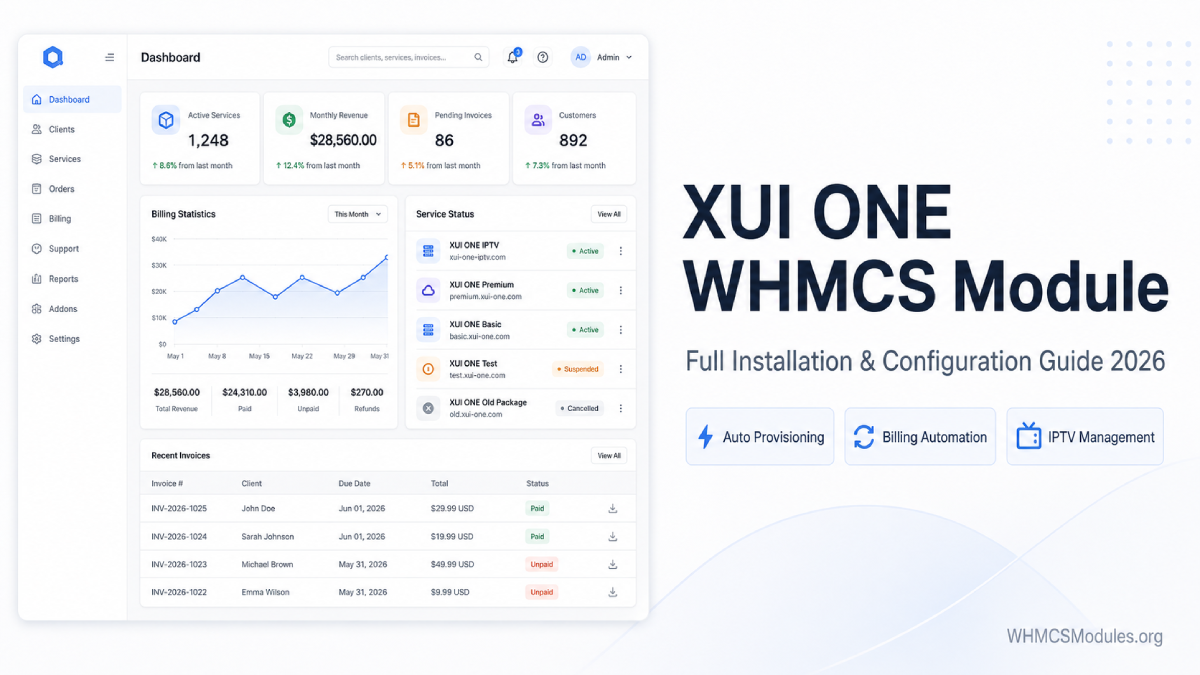
If you are running an IPTV reseller business on XUI ONE panels, managing subscriptions manually through your panel is not sustainable as your customer base grows. Every new order requires logging in, creating the line, setting the package, and sending credentials manually. Every renewal needs tracking. Every suspension needs manual action.
The XUI ONE Reseller Module for WHMCS eliminates all of that by connecting your WHMCS billing system directly to your XUI ONE panel via API — automating the entire service lifecycle from order placement through renewal, suspension, and termination.
This guide covers everything you need to install, configure, and get the most out of the XUI ONE WHMCS module.
What Does the XUI ONE WHMCS Module Do?
The XUI ONE Reseller Module for WHMCS is a provisioning module that bridges your WHMCS billing system with your XUI ONE reseller panel. Once configured, every billing event in WHMCS triggers a corresponding action on your panel automatically:
- Customer pays → line created on XUI ONE panel instantly
- Credentials delivered to customer by email automatically
- Renewal invoice paid → line expiry extended automatically
- Invoice overdue → line suspended automatically
- Cancellation → line terminated automatically
Beyond provisioning, the module includes a full client self-service area, admin management tools, billing cycle package mapping, bouquet management, and ISP lock support.
Requirements Before Installation
Make sure you have the following in place before starting:
- WHMCS 8.x or 9.x installed on a stable server with SSL
- PHP 8.1, 8.2, 8.3, or 8.4 compatible with your WHMCS version
- ionCube Loader installed on your server
- A valid XUI ONE reseller panel account with API access enabled
- Your XUI ONE panel URL, username, and password ready
- WHMCS cron job configured and running
Step-by-Step Installation
Step 1 — Purchase and Download
Purchase the XUI ONE Reseller Module from whmcsmodules.org — a 7-day free trial is included so you can test the full module on your live setup before committing. After purchase, download the module package from your client area.
Step 2 — Upload Module Files
Extract the downloaded zip file. The package contains both a server module and an addon module combined. Upload the extracted files directly to your WHMCS root directory:
/whmcs/ (root directory)Set directory permissions to 755 and file permissions to 644 after upload.
Step 3 — Activate the Addon Module
Go to WHMCS Admin → Setup → Addon Modules. Find the XUI ONE module in the list and click Activate. Assign access permissions to the admin roles that need to manage the module.
Step 4 — Add Your XUI ONE Panel
Go to WHMCS Admin → Setup → Products/Services → Servers. Click Add New Server and select XUI ONE as the module type. Enter your panel details:
- Server Name — your reference label for this panel
- Panel URL — without trailing slash
- Username and Password
- Click Save Changes
Step 5 — Test the Connection
Before configuring any products, use the built-in connection test to verify your credentials are correct and your WHMCS server can reach your XUI ONE panel. This prevents provisioning failures before they happen in production.
Step 6 — Create or Configure Your WHMCS Product
Go to Setup → Products/Services → Create New Product or edit an existing one. Under the Module Settings tab:
- Select XUI ONE as the module
- Choose the panel you added in Step 4
- Set the service type — Stream Line (M3U) or MAG device
- Configure package mapping per billing cycle
- Set bouquet options if offering channel package selection
- Configure ISP lock settings if needed
- Set credential generation preferences
Step 7 — Configure Billing Cycle Package Mapping
Map each WHMCS billing cycle to the corresponding package on your XUI ONE panel:
Monthly billing cycle    → Monthly XUI ONE package
Quarterly billing cycle  → Quarterly XUI ONE package
Annual billing cycle     → Annual XUI ONE package
This ensures customers on different billing cycles get provisioned with the correct package automatically — no manual adjustments needed.
Step 8 — Configure Bouquet Management
If you want customers to choose their channel packages during ordering or update them after activation, enable bouquet selection in the product module settings:
- Set default bouquets per product
- Allow customers to select bouquets at checkout
- Let active customers update their bouquet from the client area
- Organize bouquets into admin-defined categories
Step 9 — Test the Full Order Flow
Before going live, run a complete end-to-end test:
- Create a test client account
- Place a test order for your XUI ONE product
- Complete a test payment
- Confirm line is created on your XUI ONE panel automatically
- Confirm welcome email with credentials is received
- Log into client area and verify all self-service options work
- Test suspension by simulating an overdue invoice
- Test reactivation by paying the overdue invoice
- Test termination via a cancellation request
Only go live after all steps in this list pass cleanly.
Key Features After Setup
ISP Lock Support Create XUI ONE lines with ISP Lock enabled directly from WHMCS for better security and account control. Customers are locked to their ISP, preventing credential sharing.
Stream Line and MAG Device Support The module handles both Stream Line (M3U username/password) provisioning and MAG device provisioning via MAC address. Configure each product type separately in your product settings.
Customer Self-Service Area Once a service is active, customers can access from the WHMCS client area:
- Username and password (with reveal option)
- M3U playlist URL
- Portal URL and Web TV link
- App download links
- Expiry date with countdown
- Password change option
- Bouquet update option (where enabled)
Admin Management Tools From the WHMCS admin area, you can manually create, suspend, unsuspend, terminate, or change packages on any XUI ONE service without logging into the panel directly.
Real-Time Status Sync The module keeps service status and expiry dates synchronized between WHMCS and your XUI ONE panel, ensuring billing records always reflect the actual panel state.
Activity Logging Every API request and panel response is logged with timestamps and HTTP status codes. When something goes wrong, the module log is the first place to check.
Common Issues and Fixes
Connection Test Failing Verify your panel URL has no trailing slash. Confirm your username and password are correct. Check whether your server’s firewall is blocking outbound connections to your panel IP address.
Lines Not Being Created on Payment Check your WHMCS cron job first — go to Utilities → Cron Job Log and confirm it is running. If it is running, check the Module Log under Utilities → Logs for specific error messages from the panel.
MAG Address Validation Errors Make sure the custom field for MAC address is created on the product and mapped correctly in module settings. The module validates MAC address format before provisioning — incorrect format will reject the provisioning request.
Expiry Dates Out of Sync Check that the synchronization cron script is running correctly. If dates are still out of sync after the cron runs, check the sync log for error messages.
Credentials Not Delivered to Customer Check your WHMCS product welcome email template and confirm it includes the correct merge fields for username, password, and service details. Also check your WHMCS mail settings to confirm outgoing email is working.
XUI ONE Module vs OTT Master Panel — Which Should You Choose?
If you are running XUI ONE panels exclusively, the dedicated XUI ONE Reseller Module at $99 covers your full automation needs with deep XUI-specific features.
If you run multiple panel types — XUI ONE alongside NXT Dash, Xtream UI, or OneStream — the OTT Master Panel for WHMCS at $249 manages all of them from one module. For two or more panel types, the OTT Master Panel is more cost-effective and significantly easier to manage than running separate modules for each panel.
Pricing and Licensing
The XUI ONE Reseller Module for WHMCS is a one-time purchase at $99 with no recurring fees and a lifetime owned license. It includes a 7-day free trial, multi-level technical support, and instant download after purchase.
Get the XUI ONE Reseller Module for WHMCS →
Related WHMCS IPTV Modules
- OTT Master Panel for WHMCS — multi-panel automation for XUI ONE, NXT Dash, Xtream UI, OneStream
- NXT Dash Reseller Module for WHMCS — full automation for NXT Dash panels
- Stripe Checkout Module for WHMCS — add card payment processing to your IPTV billing