
Description
Product Description
The AI Support Automator For WHMCS helps support teams generate useful ticket replies through the OpenAI API while retaining control over what is sent to customers.
The module builds reply context from the current customer’s ticket conversation, associated WHMCS products or services, relevant knowledgebase articles, and optional IPTV troubleshooting guidance. Every generated response includes a confidence score that can be reviewed manually or compared with your automatic-reply threshold.
Automatic replies are placed in a delayed queue and processed by a dedicated cron command. Before an OpenAI request is made, the module can screen for spam, sensitive topics, excluded departments, repeated attempts, and configurable safety keywords.
How It Works
- Configure OpenAI: Add your API key, choose a supported model, and set the required confidence threshold.
- Set Automation Rules: Configure safety keywords, excluded departments, spam protection, delay, and rate limits.
- Ticket Event Occurs: A newly opened ticket or new customer reply creates or updates a pending queue item.
- Pre-AI Checks Run: The module evaluates spam signals, sensitive content, department exclusions, cooldowns, and hourly limits.
- Context Is Prepared: Relevant customer messages, service information, knowledgebase excerpts, and troubleshooting hints are redacted and assembled.
- OpenAI Generates a Reply: The response contains a customer-facing draft and a confidence score from 0 to 100.
- Reply Is Reviewed or Sent: Administrators can edit manual drafts, while eligible high-confidence queued responses can be sent automatically.
Key Features
- OpenAI Ticket Replies: Generate professional responses for WHMCS support tickets.
- Manual AI Drafts: Enter a ticket ID, preview the ticket, generate a draft, edit it, and send the approved text.
- Confidence Scoring: Assign each generated response a score between 0 and 100.
- Confidence-Based Automation: Send automatic replies only when they meet the configured threshold.
- Delayed Queue: Wait for a configurable period before processing new ticket activity.
- Dedicated Cron Processor: Process pending automatic replies independently of the standard WHMCS cron hooks.
- Context-Aware Prompts: Use customer ticket messages, service context, knowledgebase matches, and IPTV hints.
- Safety Exclusions: Skip tickets containing configurable sensitive keywords.
- Spam Filtering: Score likely spam before sending any content to OpenAI.
- Rate Limiting: Control automatic attempts by ticket and client or sender email.
- Privacy Redaction: Replace several categories of sensitive data before building OpenAI context.
- Admin Monitoring: Manage settings, queue items, drafts, blocked senders, logs, and usage snapshots.
Manual AI Draft Replies
Manual mode gives support agents AI assistance without requiring automatic customer replies.
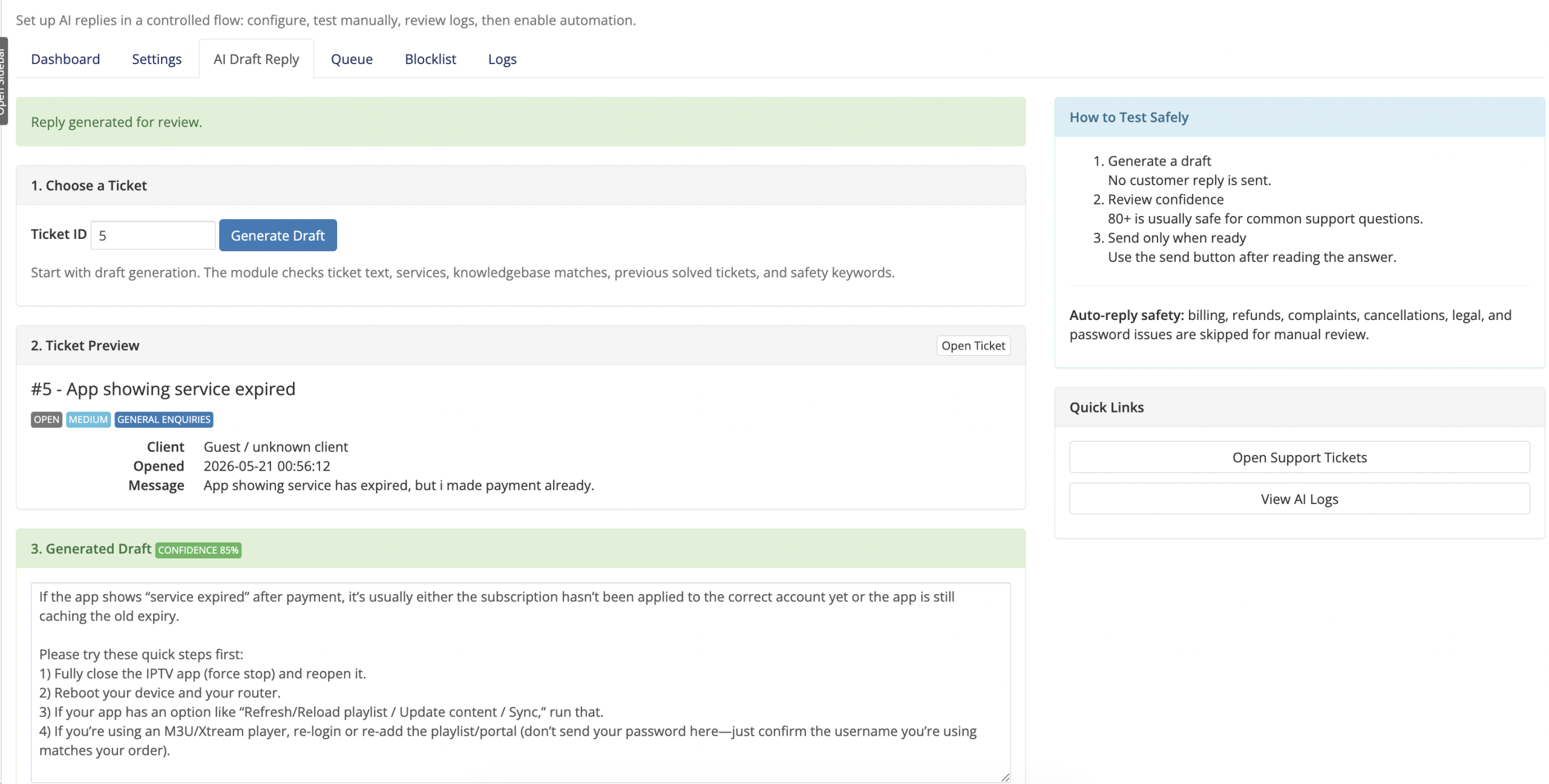
- Open the AI Draft Reply tool from the addon dashboard.
- Enter a WHMCS ticket ID or follow the Generate AI Reply shortcut from the ticket page.
- Preview the ticket status, priority, department, client, and original message.
- Generate a reply without sending anything to the customer.
- Review the displayed confidence score.
- Edit the complete response inside a text area.
- Send exactly the reviewed text as a WHMCS ticket reply.
- Regenerate the draft when another response is required.
Confidence-Based Automation
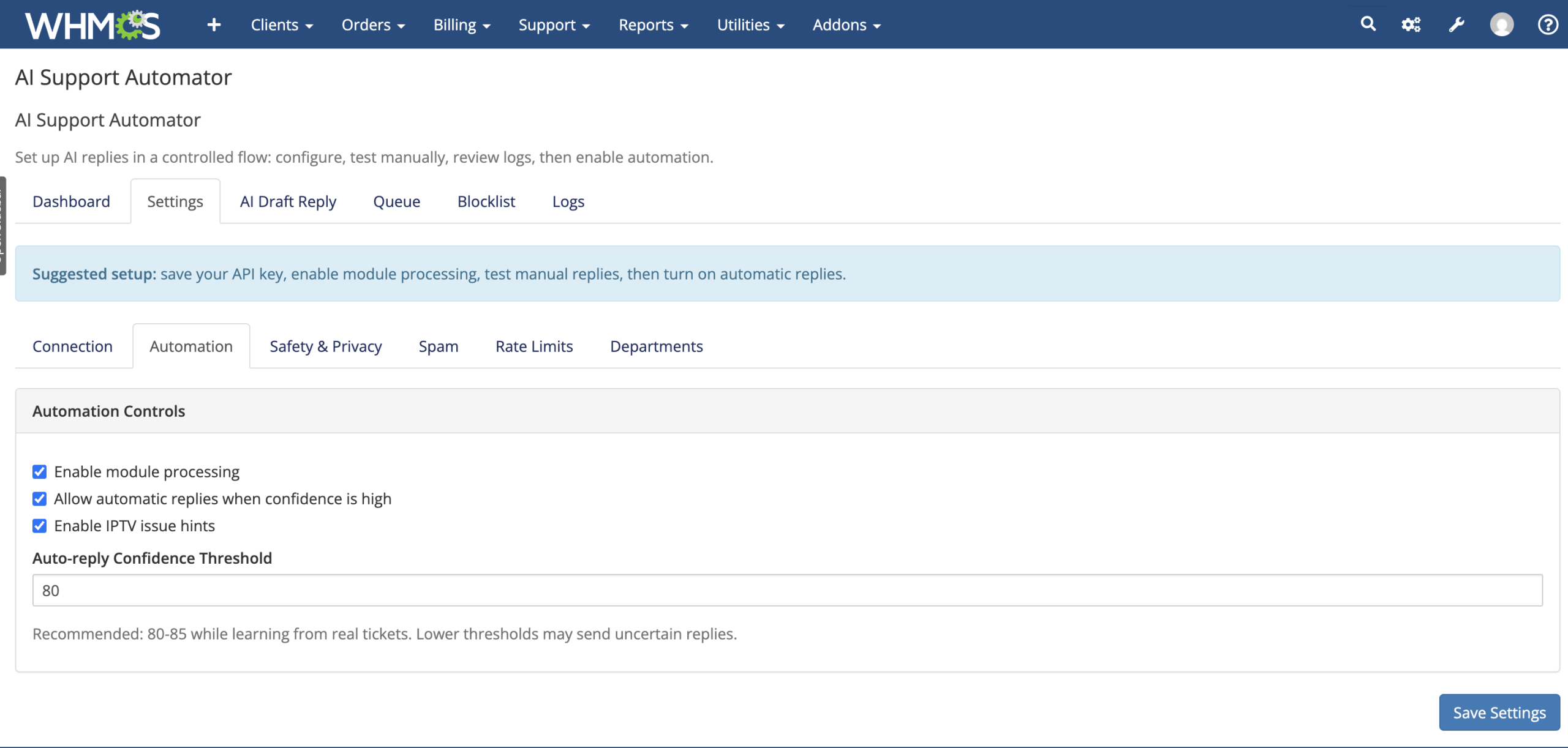
- Set the minimum confidence score required for an automatic reply.
- Keep automatic sending disabled while testing generated drafts.
- Log generated responses when module processing is enabled but auto-reply is disabled.
- Skip automatic sending when confidence is below the configured threshold.
- Record the confidence score and skip reason for administrator review.
WHMCS Context Awareness
- Current Ticket: Include the subject, status, priority, department, original message, and recent customer replies.
- Customer Conversation Only: Exclude ticket replies identified as administrator or staff responses.
- Client Services: Include up to ten services belonging to the current WHMCS client.
- Product Information: Supply the product name, group, status, and a shortened description.
- Knowledgebase Matching: Search WHMCS articles using terms found in the ticket subject and message.
- Configurable KB Limit: Choose the maximum number of matching article excerpts added to the context.
IPTV and Streaming Guidance
Optional IPTV mode adds focused troubleshooting instructions when relevant keywords are detected.
- Buffering and freezing troubleshooting
- Application and player setup guidance
- Login and invalid-credential troubleshooting without requesting passwords
- Playlist, portal, and service connectivity issues
- Device and application information gathering
- Internet, router, Wi-Fi, VPN, and proxy checks
Safety and Department Controls
- Configurable Safety Keywords: Define words or phrases that make a ticket unsuitable for an automatic AI reply.
- Sensitive Topic Defaults: Initially exclude billing, invoices, payments, refunds, chargebacks, cancellations, complaints, legal issues, and passwords.
- Pre-Request Filtering: Perform the safety check before generating the OpenAI response.
- Department Exclusions: Select WHMCS support departments that should not receive automatic replies.
- Professional Tone Instructions: Tell the AI to respond calmly and avoid repeating abusive customer language.
- No Invented Account Decisions: Instruct the AI not to invent prices, refunds, billing decisions, credentials, or private account facts.
Privacy Redaction
Before ticket, service, and knowledgebase text is included in the OpenAI request, the module applies pattern-based redaction for:
- Email addresses
- URLs and domain-style values
- IPv4 addresses
- Card-number patterns
- Passwords, secrets, tokens, and API keys
- Login and username values
- Verification and security codes
- IBAN, SWIFT, routing, sort-code, and account-number values
- A configured set of abusive words
Spam Protection and Blocklist
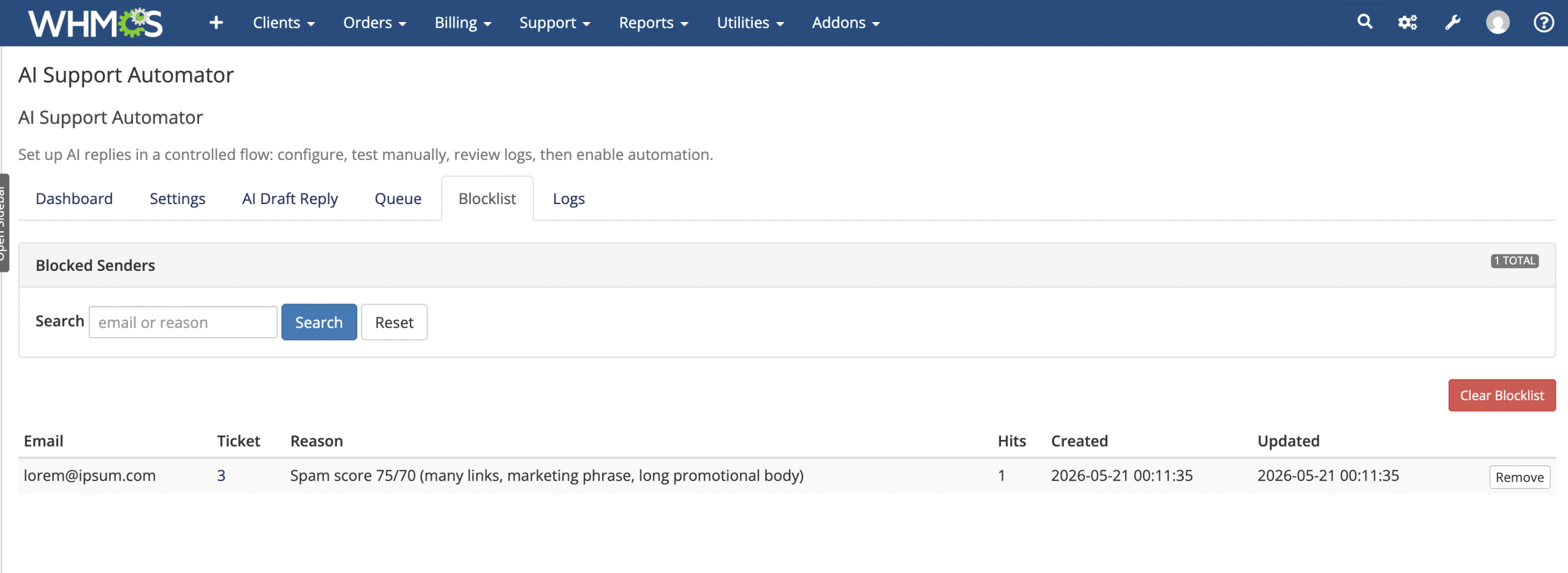
- Check a sender against the existing module blocklist.
- Score configurable spam keywords, marketing phrases, links, and long promotional messages.
- Set the score required before a ticket is classified as likely spam.
- Perform spam detection before the OpenAI API request.
- Close identified spam tickets and add a
[SPAM]prefix to the title. - Add the sender email to the module blocklist.
- Track the latest related ticket, reason, and number of blocklist hits.
- Search blocked senders, remove individual entries, or clear the blocklist.
Rate Limiting and Credit Protection
- Set the maximum automatic AI attempts per ticket within one hour.
- Set the maximum attempts per WHMCS client or guest email within one hour.
- Configure a cooldown between attempts on the same ticket.
- Skip OpenAI generation when an applicable rate limit is reached.
- Record the rate-limit scope and reason in the activity logs.
- Keep manual administrator draft generation outside the automatic rate-limit workflow.
Delayed Queue and Custom Cron
- Queue events from newly opened tickets and customer ticket replies.
- Reset the pending run time when another customer event arrives for the same ticket.
- Set the delay in seconds before a pending reply becomes eligible for processing.
- Choose the maximum number of items processed during each cron run.
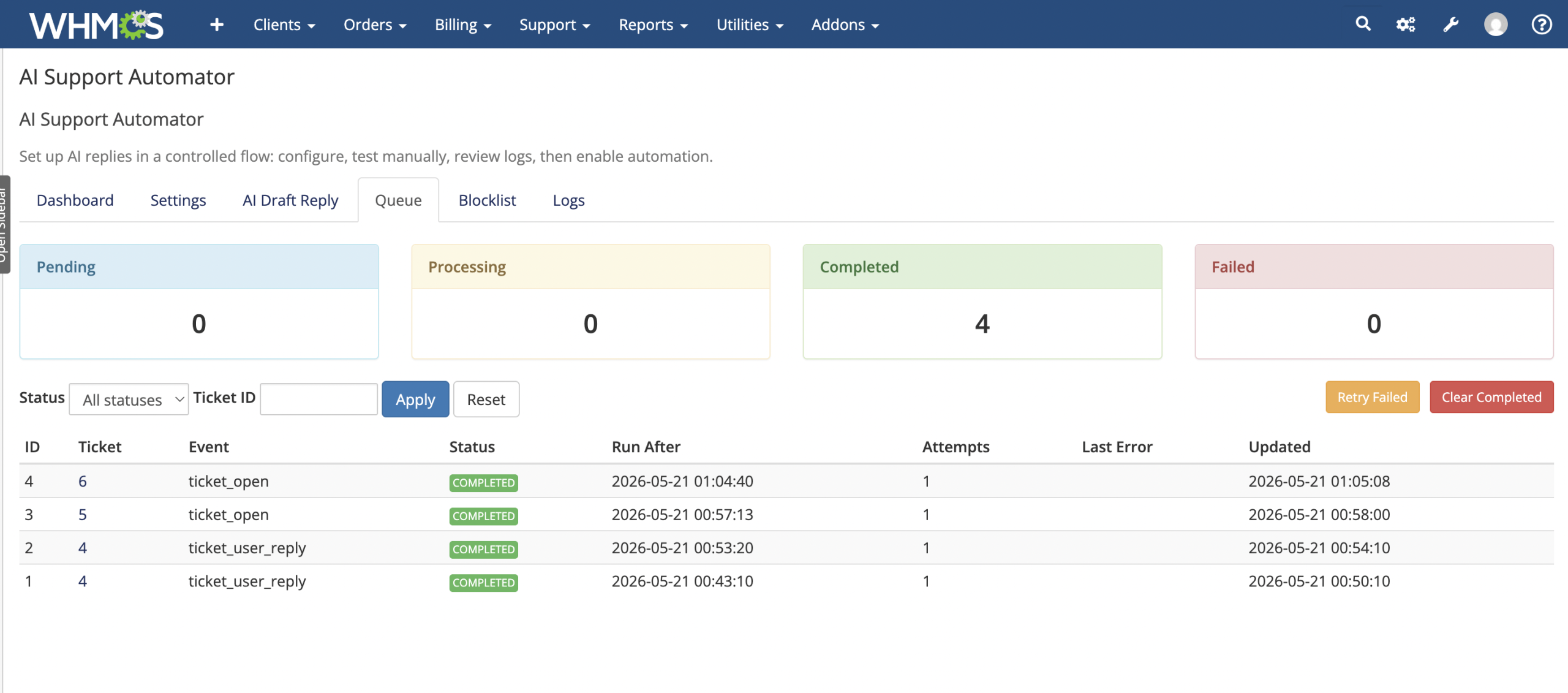
- Track pending, processing, completed, and failed queue states.
- Retry all failed items or clear completed and failed records.
- Filter the queue by status or ticket ID.
- Copy the recommended every-minute cron command from the module dashboard.
Logging and API Usage
- Log queued, generated, sent, skipped, failed, spam-blocked, and rate-limited activity.
- Record ticket ID, event, status, confidence, reason, generated reply, and API response details when available.
- Filter logs by status, ticket ID, or a search term.
- Select 10, 25, 50, or 100 log entries per page.
- Delete all activity logs through a confirmed admin action.
- Calculate module-tracked API requests and input, output, and total tokens from stored OpenAI responses.
- Open the OpenAI billing dashboard from the module usage panel.
Administrator Dashboard
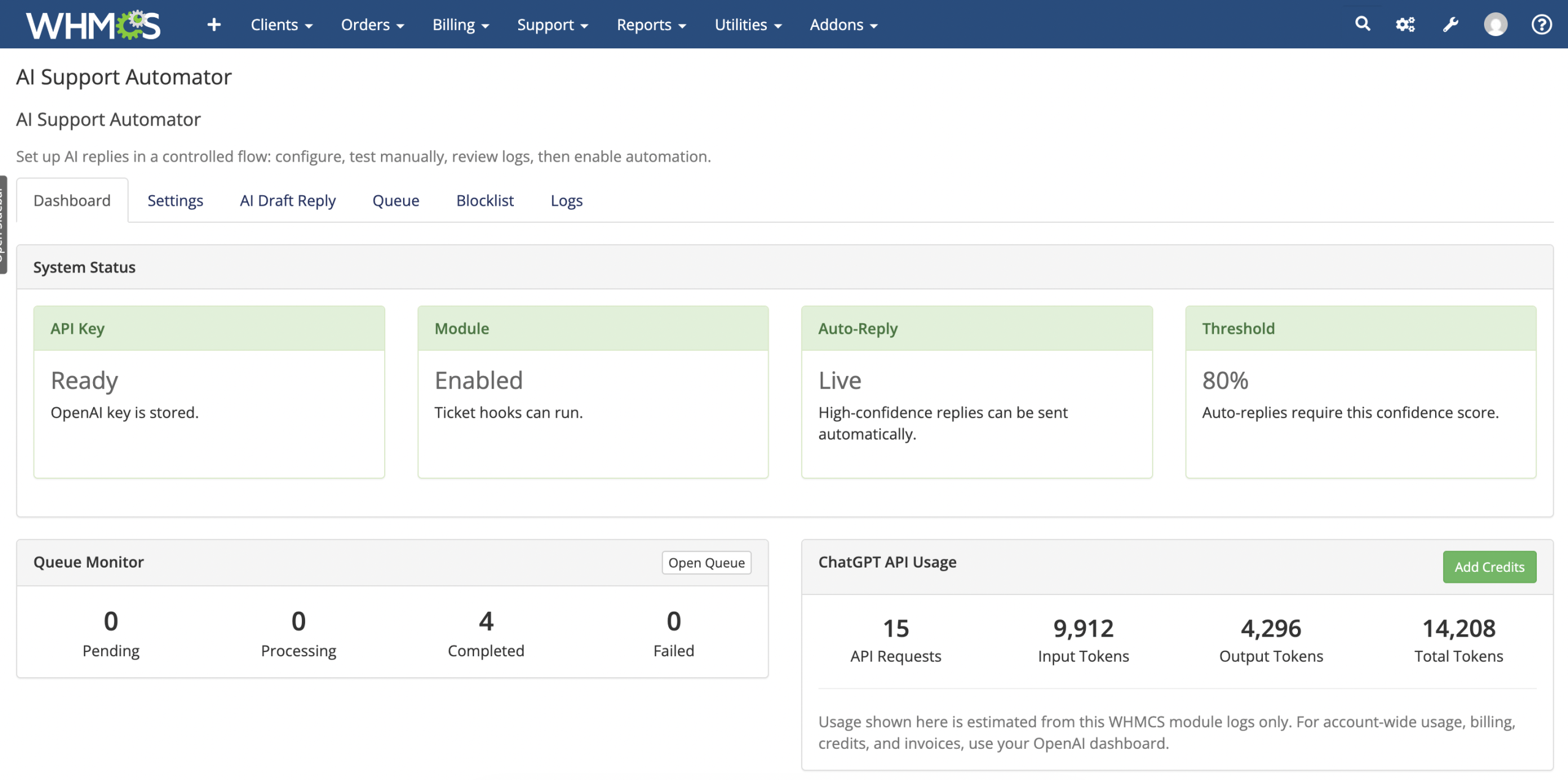
- Review API key, module, auto-reply, and confidence-threshold status.
- See pending, processing, completed, and failed queue totals.
- View module-tracked OpenAI requests and token usage.
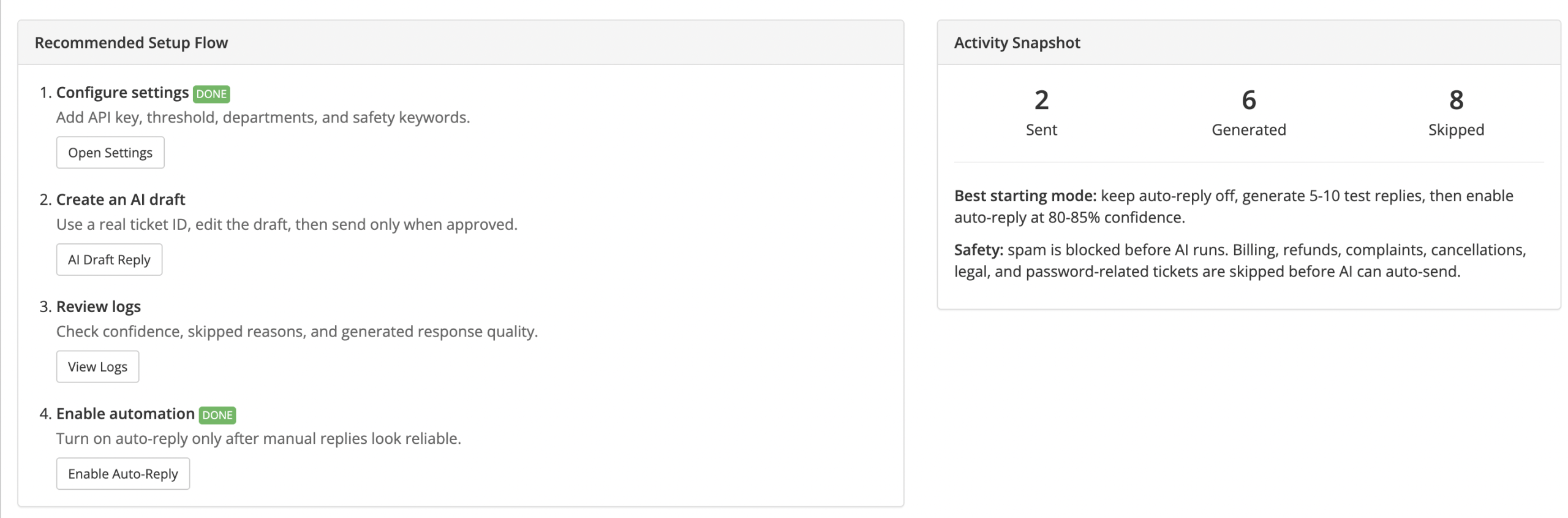
- Follow a recommended setup and testing sequence.
- See sent, generated, and skipped activity totals.
- Access Settings, AI Draft Reply, Queue, Blocklist, and Logs from organized tabs.
Requirements
- An active WHMCS installation
- An OpenAI API key with access to the selected model
- PHP cURL support for OpenAI API requests
- Server cron access for queued automatic replies
- A working WHMCS ticket and administrator environment
Ideal For
- IPTV and streaming service providers
- Web hosting and reseller hosting companies
- SaaS and digital subscription businesses
- Support teams handling repetitive technical questions
- Businesses seeking AI-assisted replies with manual approval
- WHMCS teams that need controlled ticket automation
Why Choose AI Support Automator For WHMCS?
AI Support Automator combines OpenAI reply generation with practical WHMCS context, editable drafts, confidence gating, delayed processing, safety exclusions, privacy redaction, spam handling, rate limits, and administrator monitoring.
It supports a gradual adoption path: begin with manual drafts, review confidence and logs, refine your settings, and enable automatic replies only when the generated responses meet your support standards.