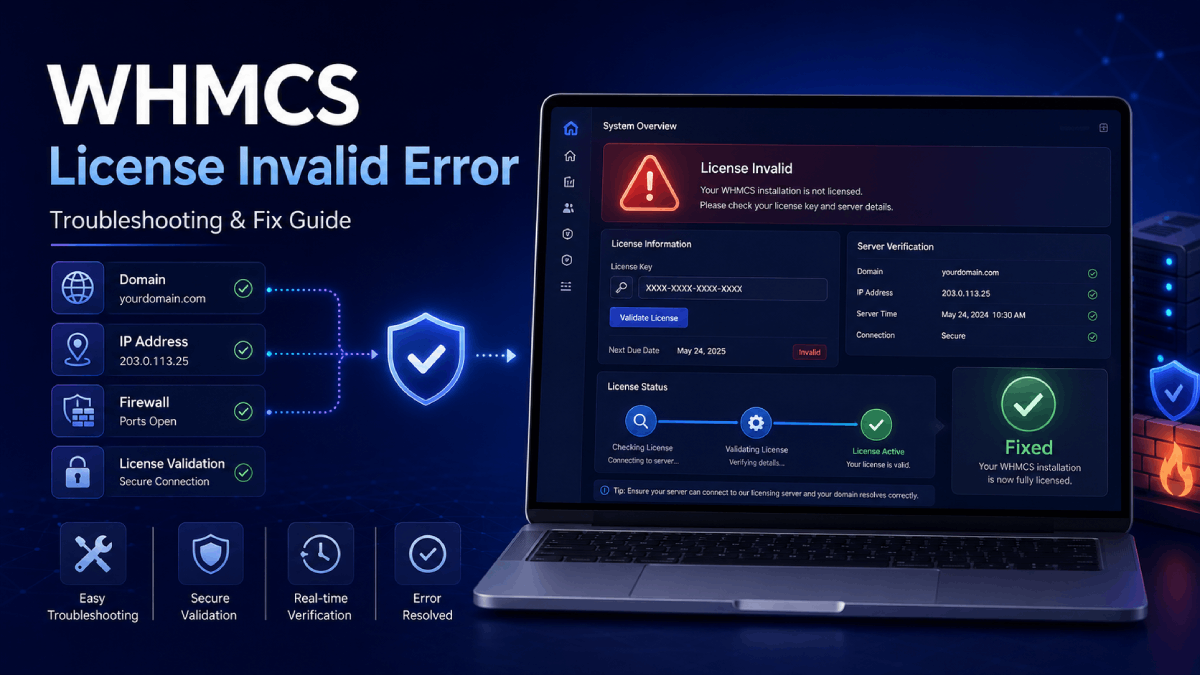
The WHMCS license invalid error usually appears when WHMCS cannot verify your license details correctly. This can happen because of an incorrect license key, changed domain, changed IP address, changed installation directory, server firewall issue, or connection problem with the license verification system.
If you recently moved WHMCS to a new server, changed your domain, restored a backup, updated DNS, or installed a licensed WHMCS module, you may see a license invalid message until the license details are corrected.
In this guide, we’ll explain the common reasons behind the WHMCS license invalid error and the steps you can follow to fix it.
What Does License Invalid Mean in WHMCS?
A license invalid message means WHMCS or a WHMCS module could not validate the license against the expected license details. Most license systems check information such as domain name, IP address, installation directory, and license key.
If one of these values does not match the licensed record, the system may show a license invalid error.
Common Reasons for WHMCS License Invalid Error
The error can happen for several reasons. Before making major changes, check the most common causes first.
Incorrect license key entered
Domain name does not match the licensed domain
Server IP address changed after migration
WHMCS installation path changed
License needs to be reissued
Firewall is blocking license verification
cURL or SSL issue on the server
DNS has not fully propagated
Module license is expired, suspended, or assigned to another domain
1. Check the License Key
Start by checking that the license key is entered correctly. A missing character, extra space, or wrong license key can trigger the license invalid message.
Make sure:
The license key is copied exactly
There are no spaces before or after the key
You are using the correct license for the correct product
The license is active in your client account
If you purchased a WHMCS module from us, log in to your client area and confirm the license status from your services list.
2. Confirm the Licensed Domain
Most WHMCS license systems are linked to a specific domain. If your WHMCS installation is running on a different domain or subdomain than the licensed record, the license may fail.
For example, these may be treated as different locations:
example.com
www.example.com
billing.example.com
client.example.com
Check that the domain used in your browser matches the domain assigned to the license.
3. Check the Server IP Address
If you recently migrated WHMCS to a new VPS, hosting account, or server, the server IP address may have changed. Many license systems store the IP address as part of license validation.
If the old IP is still attached to the license, you may need to reissue the license or update the allowed IP from the provider’s client area.
4. Check the WHMCS Installation Directory
Some license systems also validate the installation path. If WHMCS was moved from one folder to another, the license may need to be reissued.
Examples of path changes include:
/home/user/public_html/whmcs/ to /home/user/public_html/billing/
/var/www/html/ to /var/www/domain/public_html/
Moving from a subfolder to the root domain
If your domain, IP, or directory changed, reissuing the license is often the fastest fix.
5. Reissue the License
Many WHMCS license providers allow you to reissue a license from the client area. Reissuing clears the old domain, IP, or path lock so the license can bind to the new installation details.
General steps:
Log in to the provider’s client area
Open the related product or service
Find the license management section
Click reissue license, if available
Refresh your WHMCS admin area or module page
If you do not see a reissue option, contact the provider and ask them to reset the license for your new domain, IP, or installation path.
6. Check Firewall and Server Connections
License verification usually requires your server to connect to the license server. If outgoing connections are blocked, WHMCS or the module may not be able to validate the license.
Check for:
Server firewall restrictions
Blocked outgoing HTTPS requests
Cloudflare or security rules affecting callbacks
Hosting provider network restrictions
ModSecurity rules blocking license requests
If you are using a VPS, confirm that outbound HTTPS connections are allowed.
7. Verify cURL and SSL Support
WHMCS modules often use cURL to communicate with license servers. If cURL is disabled or SSL verification fails, license checks may not work correctly.
Ask your hosting provider or server admin to confirm:
PHP cURL extension is enabled
OpenSSL is enabled
CA certificates are installed and updated
The server can make HTTPS requests successfully
These checks are especially important after server migrations or PHP version changes.
8. Clear WHMCS Cache and Module Cache
Some modules cache license responses for performance. After fixing the license details, you may need to clear cache before the updated license status appears.
You can try:
Clearing WHMCS template cache
Refreshing the module admin page
Logging out and back into WHMCS admin
Clearing server cache if enabled
Clearing Cloudflare cache if the module loads assets through the website
9. Check Module Compatibility
If the license error appears after updating WHMCS, PHP, or the module itself, compatibility may be involved. Make sure the module supports your current WHMCS and PHP versions.
For best results, keep your WHMCS installation and modules updated. You can browse our WHMCS addon modules and WHMCS OTT modules to find modules built for modern WHMCS environments.
10. Contact the Module Provider
If you checked the license key, domain, IP, path, firewall, and cURL settings but the issue remains, contact the module provider. Share the exact error message and your environment details so they can check the license record.
Useful information to provide:
License key or order ID
Licensed domain
Current WHMCS URL
Server IP address
WHMCS version
PHP version
Screenshot of the error
Whether the site was recently migrated
If you need help with WHMCS setup, module installation, or troubleshooting, you can contact us through our WHMCS services.
Quick Checklist to Fix WHMCS License Invalid Error
Check the license key is correct
Confirm the licensed domain matches
Check if the server IP changed
Check if the installation directory changed
Reissue the license if available
Confirm cURL and OpenSSL are enabled
Allow outbound HTTPS connections
Clear WHMCS and server cache
Check WHMCS and PHP compatibility
Contact the license provider if the issue remains
Final Thoughts
The WHMCS license invalid error is usually caused by a mismatch between the license record and your current installation details. In most cases, checking the license key, domain, IP address, installation path, and server connectivity will help you find the issue quickly.
If your WHMCS installation was recently moved or restored, reissuing the license is often the simplest solution. If the issue is server-related, checking firewall, cURL, SSL, and outbound connections can help restore license verification.
For professional help with WHMCS troubleshooting, module setup, or custom development, visit our WHMCS services page.