
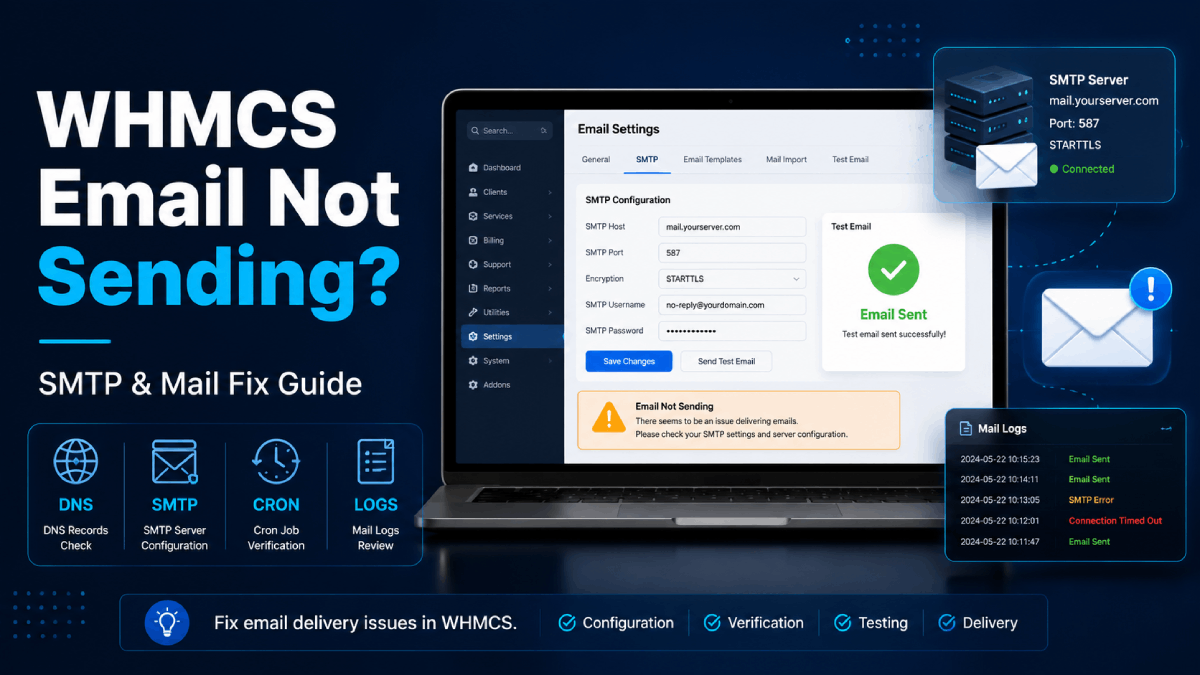
If emails are not sending in WHMCS, your customers may miss important invoices, password resets, order confirmations, support ticket replies, and renewal reminders. This can create billing delays, support confusion, and a poor customer experience.
WHMCS email issues can happen because of incorrect SMTP settings, wrong mail provider credentials, blocked ports, DNS problems, cron issues, email template settings, or server mail restrictions.
In this guide, we’ll explain how to troubleshoot and fix email not sending in WHMCS step by step.
Why WHMCS Emails Are Important
WHMCS uses email for many important customer and admin notifications. If email delivery stops working, your billing and support workflow can be affected quickly.
WHMCS emails may include:
- Invoice created notifications
- Payment confirmation emails
- Order confirmation emails
- Account welcome emails
- Password reset emails
- Support ticket replies
- Service renewal reminders
- Overdue invoice notices
- Suspension and termination notices
For hosting companies, IPTV resellers, SaaS platforms, and digital service providers, email delivery should be tested regularly.
Common Reasons Emails Are Not Sending in WHMCS
Before changing many settings, it helps to understand the common causes behind WHMCS email problems.
- Incorrect SMTP hostname, port, or encryption
- Wrong SMTP username or password
- Mail provider blocking login attempts
- Server firewall blocking outgoing mail ports
- PHP mail disabled or restricted by hosting provider
- Missing SPF, DKIM, or DMARC DNS records
- WHMCS cron not running correctly
- Email templates disabled or misconfigured
- Admin or client email address entered incorrectly
- Mail is sent but landing in spam or junk folder
1. Check WHMCS Mail Settings
Start by checking your WHMCS mail configuration. In WHMCS admin, go to the mail settings area and confirm whether you are using PHP Mail or SMTP.
For most production websites, SMTP is usually recommended because it is more reliable and easier to troubleshoot.
Check these settings carefully:
- Mail type
- SMTP hostname
- SMTP port
- SMTP username
- SMTP password
- SMTP SSL or TLS setting
- From name and from email address
A small typo in the hostname, username, password, or port can stop WHMCS from sending emails.
2. Use the Correct SMTP Port and Encryption
Different mail providers require different SMTP ports and encryption settings. Using the wrong combination can cause connection failures.
Common SMTP settings include:
- Port
587with TLS - Port
465with SSL - Port
25without encryption or with server-specific rules
Many hosting providers block port 25 to reduce spam, so port 587 or 465 is usually better when using SMTP.
3. Confirm SMTP Username and Password
If WHMCS cannot authenticate with your mail provider, emails will not send. Make sure the SMTP username and password are correct.
Also check whether your provider requires:
- Full email address as username
- App password instead of regular account password
- Two-factor authentication compatible mail password
- Authorized sending domain
- Verified sender identity
If you recently changed your email password, update it inside WHMCS as well.
4. Test Email Sending From WHMCS
After checking mail settings, send a test email from WHMCS if the option is available. This helps confirm whether WHMCS can connect to the mail provider and send messages successfully.
If the test fails, note the exact error message. It may mention authentication failure, connection timeout, SSL error, blocked port, or invalid sender address.
These error messages can help identify whether the problem is inside WHMCS, your mail provider, or the server network.
5. Check WHMCS Email Templates
Sometimes WHMCS can send emails, but a specific email type is not being sent because the related template is disabled or customized incorrectly.
Check your email templates for:
- Disabled templates
- Missing subject lines
- Broken merge fields
- Incorrect sender settings
- Custom template errors
If one email type does not work but others do, the template may be the issue.
6. Check WHMCS Cron Jobs
Some WHMCS emails depend on automation tasks. If your WHMCS cron is not running correctly, renewal reminders, overdue notices, and other scheduled emails may not send.
Check that your WHMCS cron is configured on the server and running at the recommended interval.
Cron-related email issues may affect:
- Invoice generation emails
- Payment reminder emails
- Overdue invoice notices
- Service suspension notices
- Domain renewal reminders
- Automation task notifications
If manual emails send but scheduled emails do not, cron should be checked first.
7. Review Mail Logs and Activity Logs
WHMCS and your server may keep logs that help identify email problems. Logs can show whether WHMCS tried to send an email and whether the server accepted or rejected it.
Check:
- WHMCS activity log
- WHMCS email message log, if available
- Server mail logs
- SMTP provider logs
- Hosting control panel email logs
If WHMCS says the email was sent but the customer did not receive it, the issue may be spam filtering, DNS authentication, or provider delivery rules.
8. Check SPF, DKIM, and DMARC Records
Email delivery depends heavily on DNS authentication. If SPF, DKIM, or DMARC records are missing or incorrect, emails may be rejected or sent to spam.
Important DNS records include:
- SPF: Defines which servers are allowed to send email for your domain
- DKIM: Adds a digital signature to verify email authenticity
- DMARC: Tells receiving mail servers how to handle failed authentication
For better delivery, configure these records according to your mail provider’s instructions.
9. Check Spam and Junk Folders
Sometimes WHMCS emails are being sent successfully but are landing in spam or junk folders. This often happens when DNS records are incomplete, the sender domain has low reputation, or the email content looks suspicious.
To reduce spam placement:
- Use SMTP instead of basic PHP mail
- Configure SPF, DKIM, and DMARC
- Use a professional sender email address
- Avoid spammy subject lines
- Do not use too many links in system emails
- Keep email templates clean and professional
10. Check Server Firewall and Hosting Restrictions
Your server or hosting provider may block outbound SMTP ports. This is common on VPS, cloud servers, and shared hosting environments.
Ask your hosting provider or server admin to confirm whether outbound SMTP is allowed on the required port.
Commonly checked ports:
25465587
If the port is blocked, WHMCS will not be able to connect to your SMTP provider even if your credentials are correct.
11. Check PHP Mail If You Are Not Using SMTP
If you are using PHP Mail, delivery depends on the server’s mail configuration. Many hosts limit or disable PHP mail because it can be abused for spam.
PHP mail can fail because of:
- Missing mail server configuration
- Hosting restrictions
- Server reputation problems
- Incorrect sender address
- Messages rejected by receiving mail servers
If PHP Mail is unreliable, switch to SMTP with a trusted email provider.
12. Use a Reliable Mail Provider
For business websites, it is better to use a reliable transactional email provider or professional SMTP service instead of relying only on server mail.
A good mail provider can improve:
- Email delivery reliability
- Authentication setup
- Log visibility
- Bounce tracking
- Spam reputation
- Sending performance
This is especially important for WHMCS websites that send invoices, renewal reminders, support emails, and service notifications.
13. Email Notifications Beyond Standard Email
If your business depends on fast alerts, you can also use notification integrations alongside email. For example, Telegram, Discord, or SMS alerts can notify admins about new orders, invoices, tickets, and important system events.
You can explore related tools in our WHMCS addon modules category.
Quick Checklist to Fix Email Not Sending in WHMCS
- Check WHMCS mail settings
- Use correct SMTP hostname, port, and encryption
- Confirm SMTP username and password
- Send a test email from WHMCS
- Check email templates
- Confirm WHMCS cron is running
- Review WHMCS and server mail logs
- Configure SPF, DKIM, and DMARC
- Check spam or junk folders
- Confirm SMTP ports are not blocked
- Switch from PHP Mail to SMTP if needed
- Use a reliable mail provider
Final Thoughts
Email not sending in WHMCS can affect billing, support, renewals, and customer communication. The most common causes are incorrect SMTP settings, blocked ports, wrong credentials, missing DNS authentication, cron issues, or mail provider restrictions.
Start with SMTP settings, test email sending, review logs, and confirm your DNS records. If scheduled emails are not sending, check the WHMCS cron job. If emails are sent but not received, focus on spam filtering and domain authentication.
If you need help with WHMCS email setup, module configuration, or troubleshooting, visit our WHMCS services page for professional support.